A free online movie text file import creator for CATVids
Instructions
1. Do this first
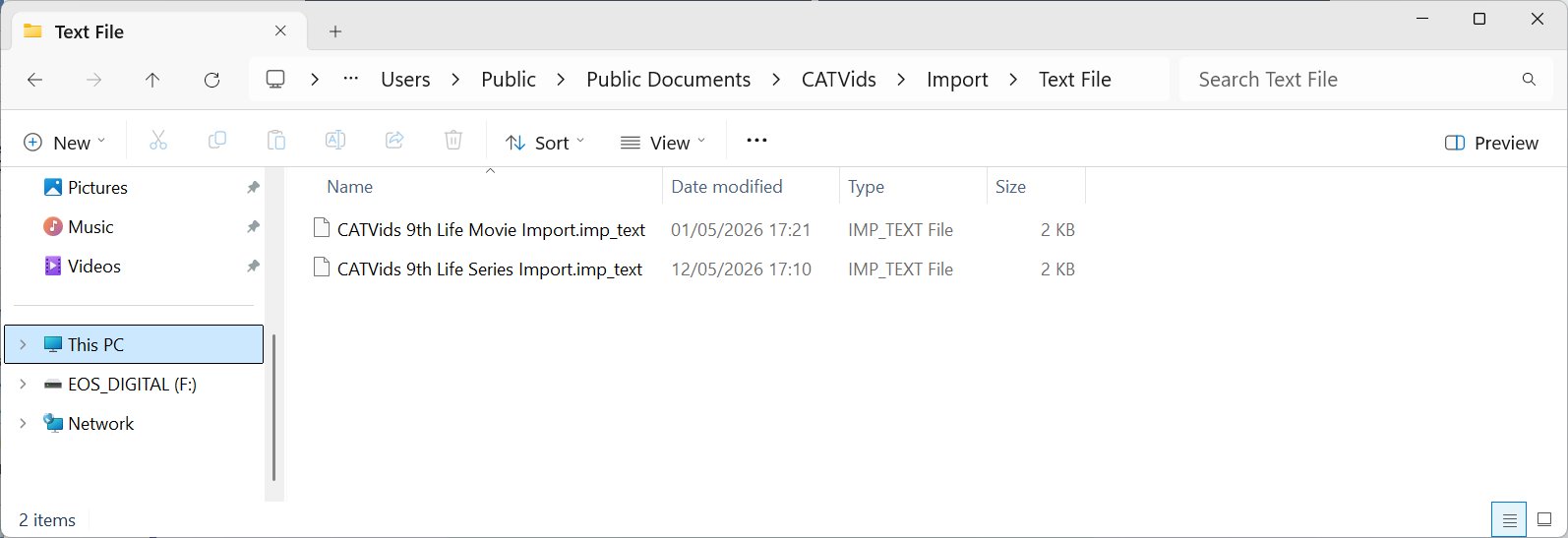
This is an important first step which needs to be done just once. Download the CATVids 9th Life Import Definition files and save them to your CATVids Data Folder under subfolders .....\Import\Text File\.
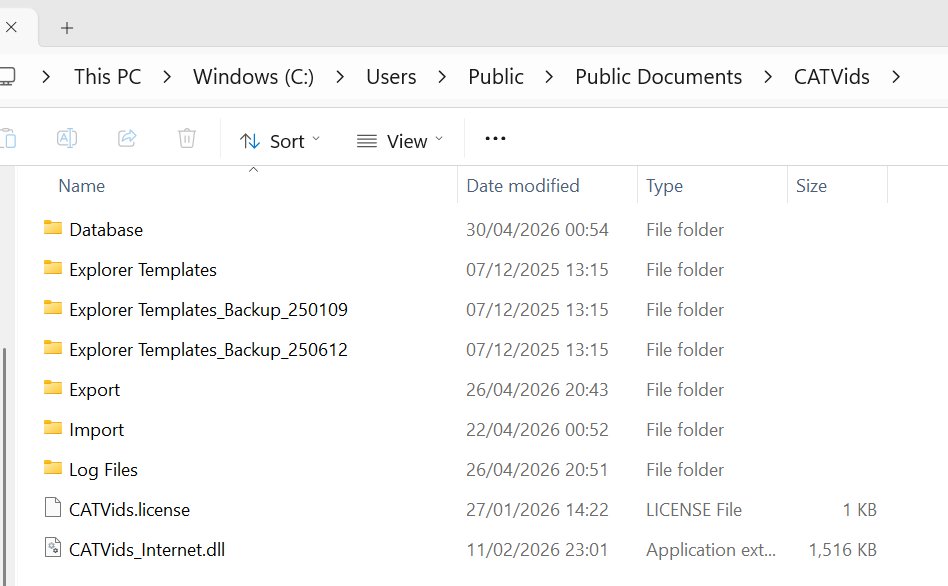
To view your CATVids Data Folder select the Tools menu and then Open Data Folder.
The default CATVids Data folder location is C:\Users\Public\Documents\CATVids so with that default you would save the CATVids 9th Life Import Definition file to C:\Users\Public\Documents\CATVids\Import\Text File\
There are now TWO CATVids 9th Life Import Definition files - the original one for Movies and a new one for Series.You need to download both if you want to import both Movies and Series.
My CATVids Data Folder
My CATVids 9th Life Import Definition files saved to the correct folder.
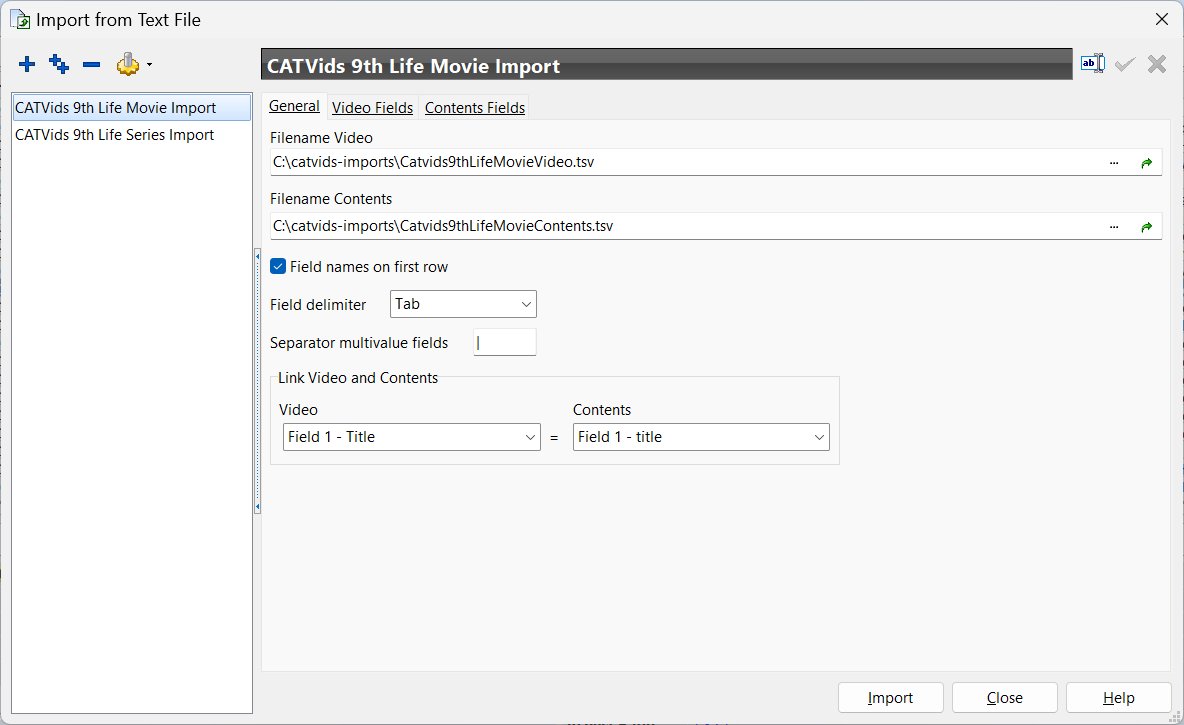
You can check that the Import Definitions have been downloaded to the correct folder by selecting, in CATVids menu, File -> Import -> Text File...
It should look like this if you have downloaded both Movie and Series import definition files:
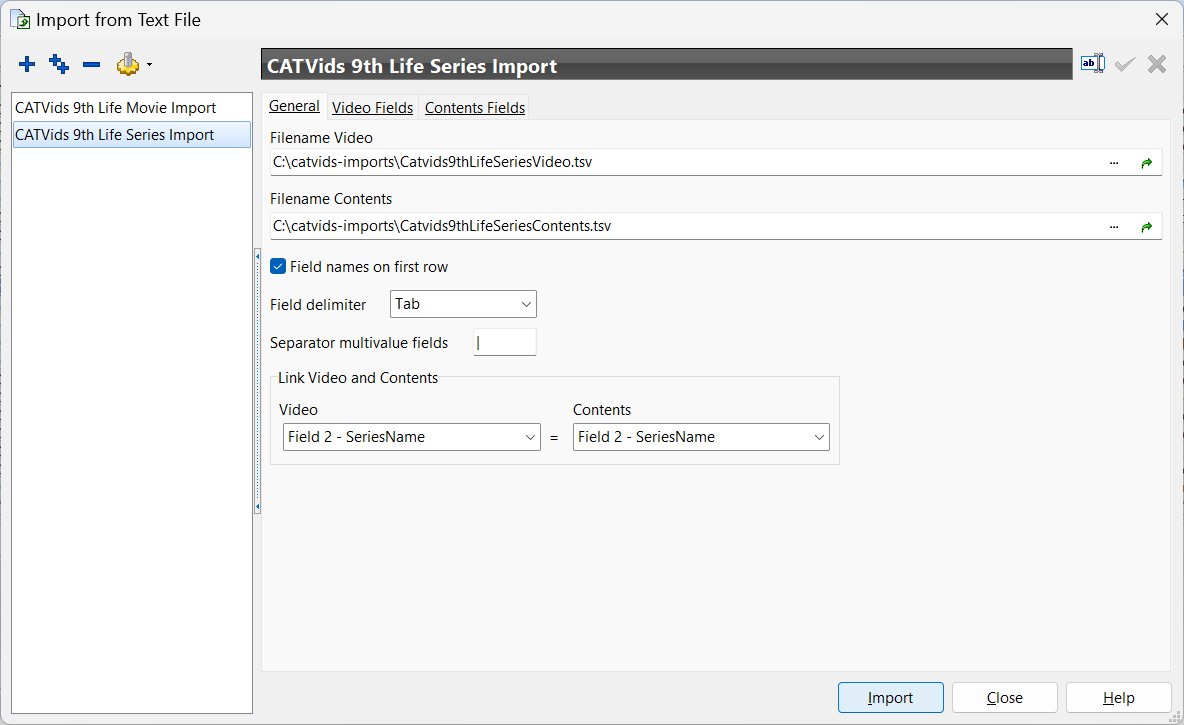
DO NOT CHANGE ANY OF THE ABOVE SETTINGS
DO NOT CHANGE ANYTHING IN THE VIDEO FIELDS OR CONTENTS FIELDS TABS
2. Make the import folder
This, also, only needs to be done once. Make one folder;
C:\catvids-imports
3. You are now ready to download and import movies and/or series data
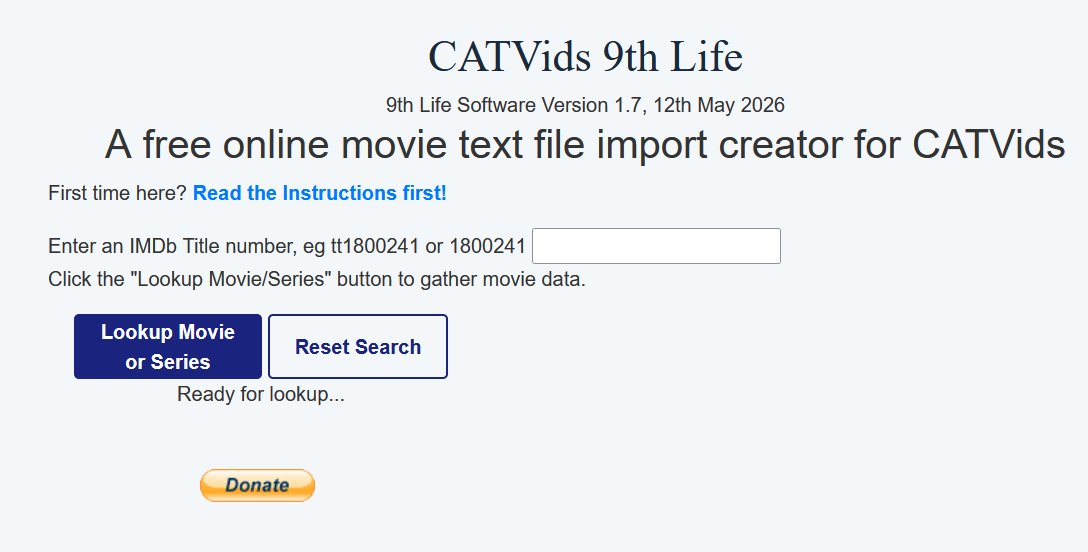
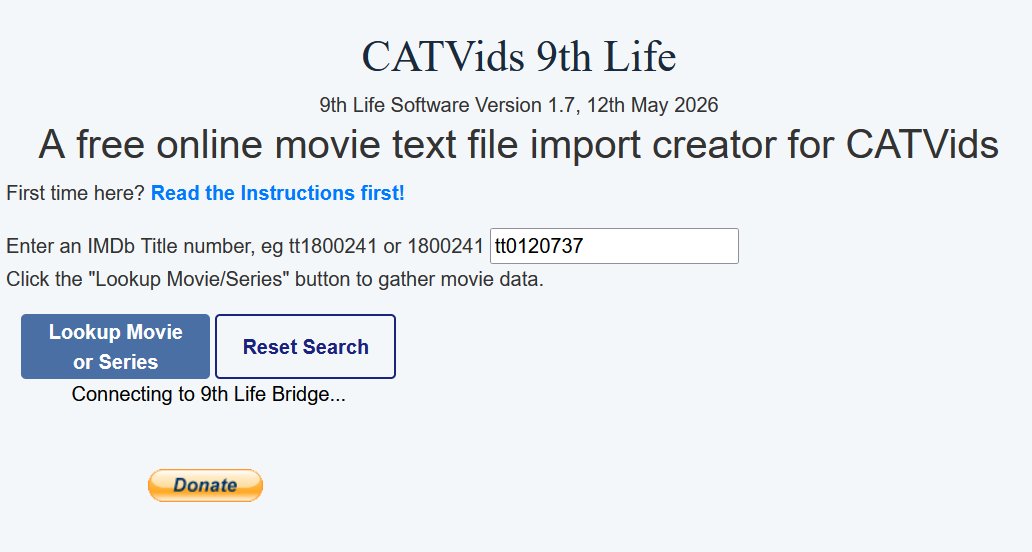
Just go to our home page and enter the IMDB number of the movie or TV series you want to import data for in the text box and click Lookup Movie or Series. The IMDB number is the tt..... part of the movie page. For example;
https://www.imdb.com/title/tt0120737/?ref_=nv_sr
Entering an IMDB movie title tt id and clicking Lookup Movie or Series sends the request to my software in the background - the 9th Life Bridge that gathers all the data on a film or TV Series.
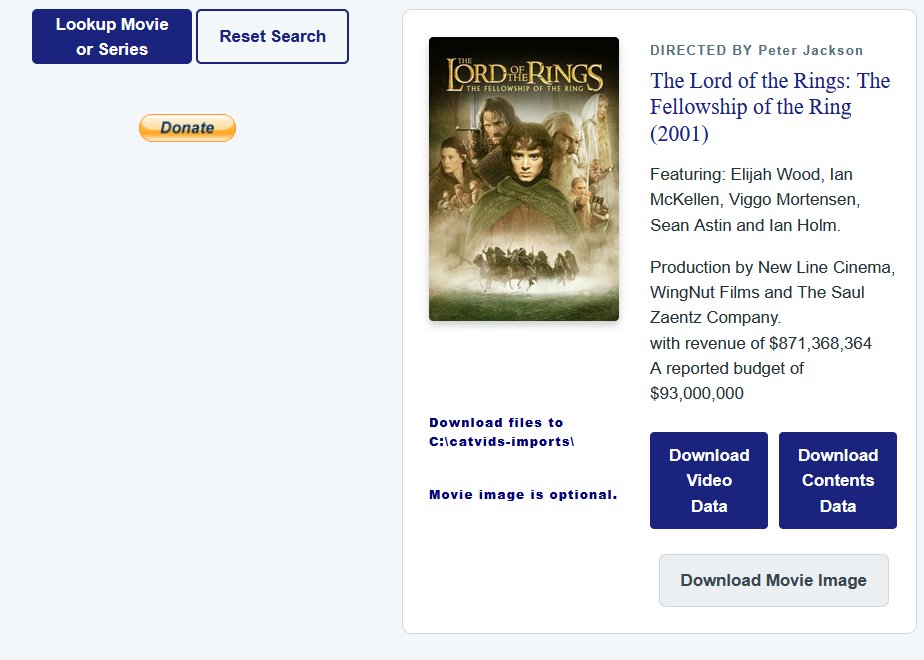
A successful movie lookup will show you a quick summary of the movie that was found. CATVids 9th Life gathers a lot more data than the quick summary it is showing.
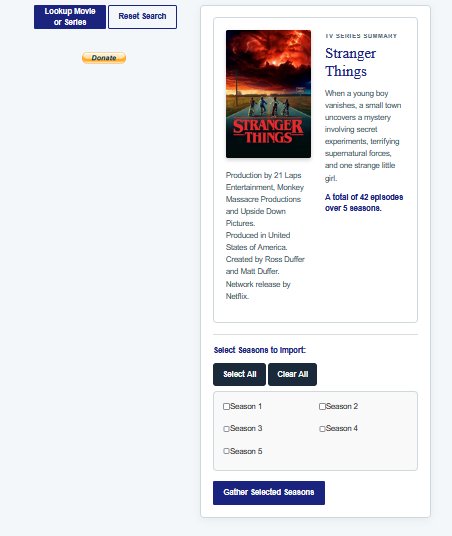
A successful TV Series lookup will show you a quick summary of the TV Series that was found. When a series is found you will ve asked to select the seasons you want to gather data for. CATVids 9th Life gathers a lot more data than the quick summary it is showing.
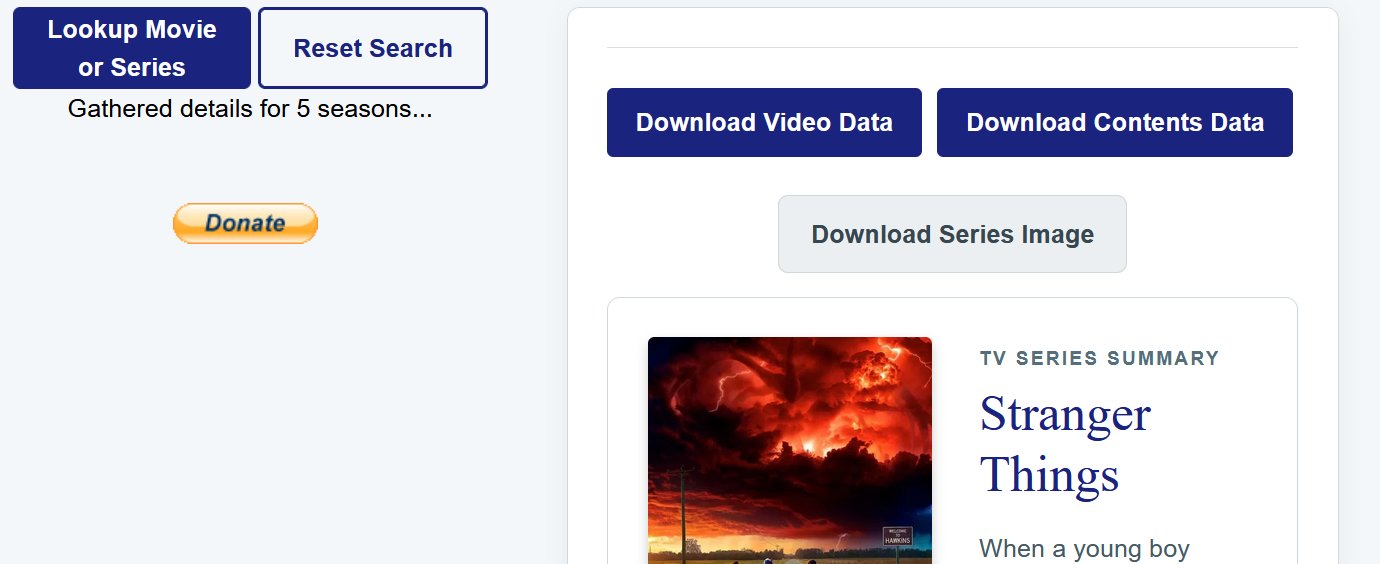
When 9th Life has finished gathering the data for your selected seasons, you will be presented with the download buttons.
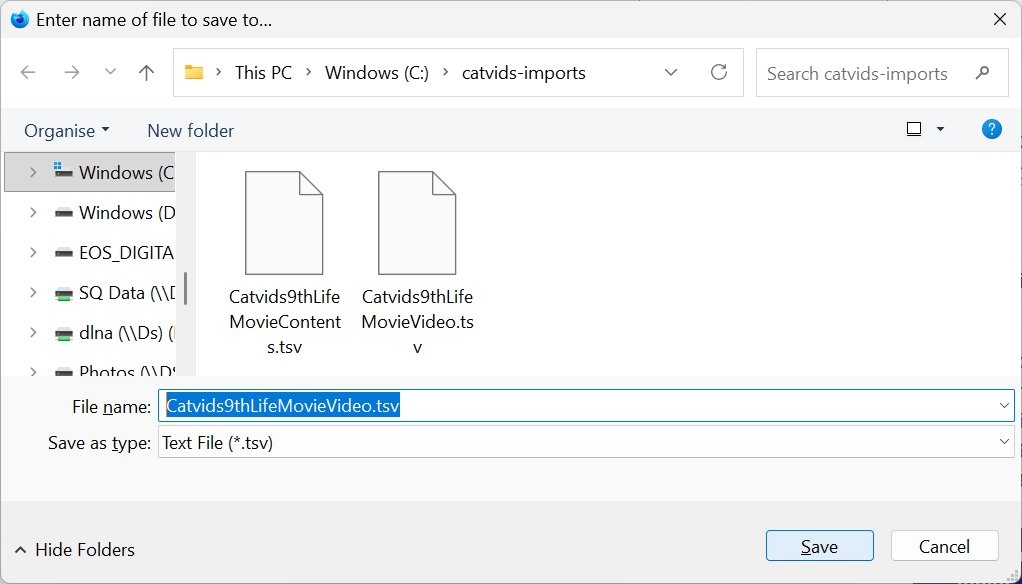
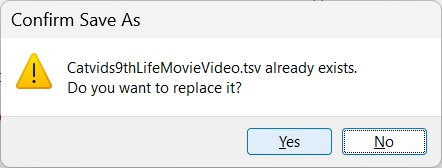
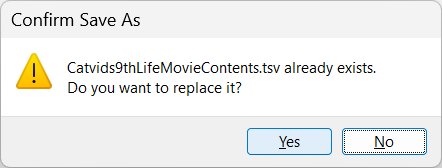
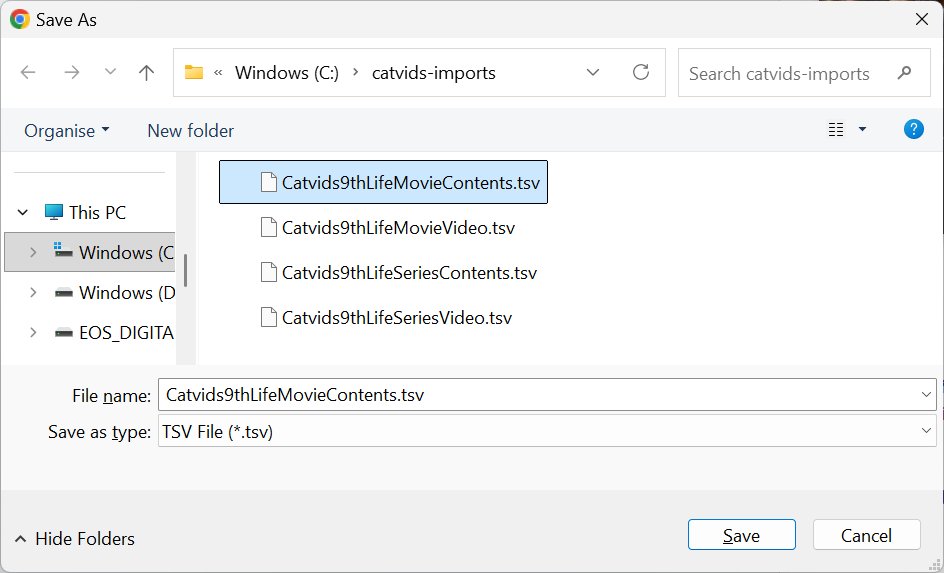
Clicking Download Video Data and Download Contents Data will ask you to save two text .tsv files. They must both be downloaded to C:\catvids-imports\
Always click Yes to replace existing files. You will download these two files every time you import a movie.
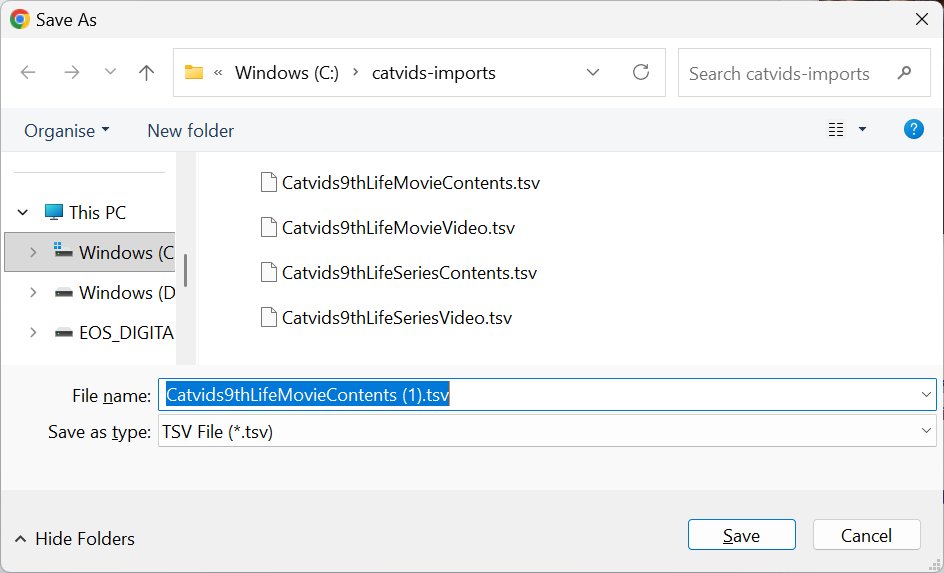
Some browsers, such as Chrome, might always want to rename the download file instead of overwriting the existing file. Do not let the browser rename the tsv files as, for example, Catvids9thLifeMovieContents (1).tsv
An easy way to force the overwrite question is to click on the file, in this case Catvids9thLifeMovieContents.tsv
Clicking on the existing file you want to overwrite will force the overwrite question. Do make sure that you click the right file though
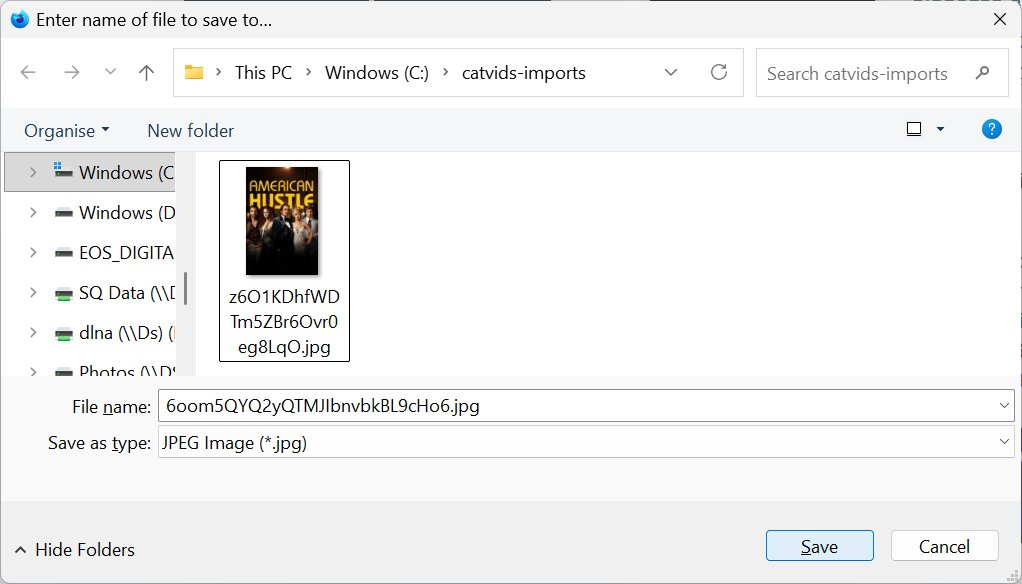
Clicking Download Movie Image or Download Series Imagewill ask you to save the movie/series poster image. This must be downloaded to C:\catvids-imports\
The movie/series poster download is totally optional. Do this only if you want a movie/series poster image image to be added to your import in the way Download from Internet would have done.
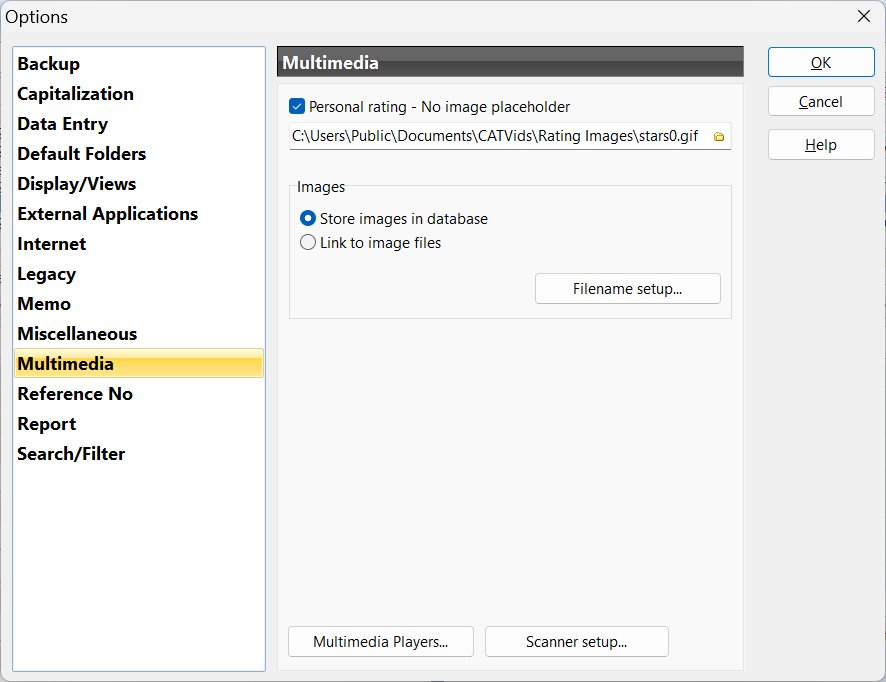
The normal CATVids behaviour for images applies and depends on how you have CATVids set up. Tools -> Options -> Multimedia
If you have Store images in database selected, you can delete any movie poster images you have saved to C:\catvids-imports\ once they have been imported with the CATVids 9th Life Movie Import.
If you have Link to image files selected you need to keep images on your PC. See CATVids editing images help file for more information
Now that we have done the Lookup Movie or Series, saved our TSV text files and optionally our movie poster file, we go back to the CATVids text import. File -> Import -> Text File...
Make sure to choose CATVids 9th Life Movie Import to import movie information and choose CATVids 9th Life Series Import when importing a series.
Click Import
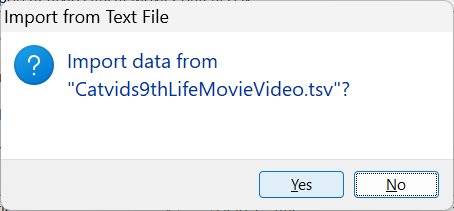
Click Yes to the question; Import data from "Catvids9thLifeMovieVideo.tsv"?
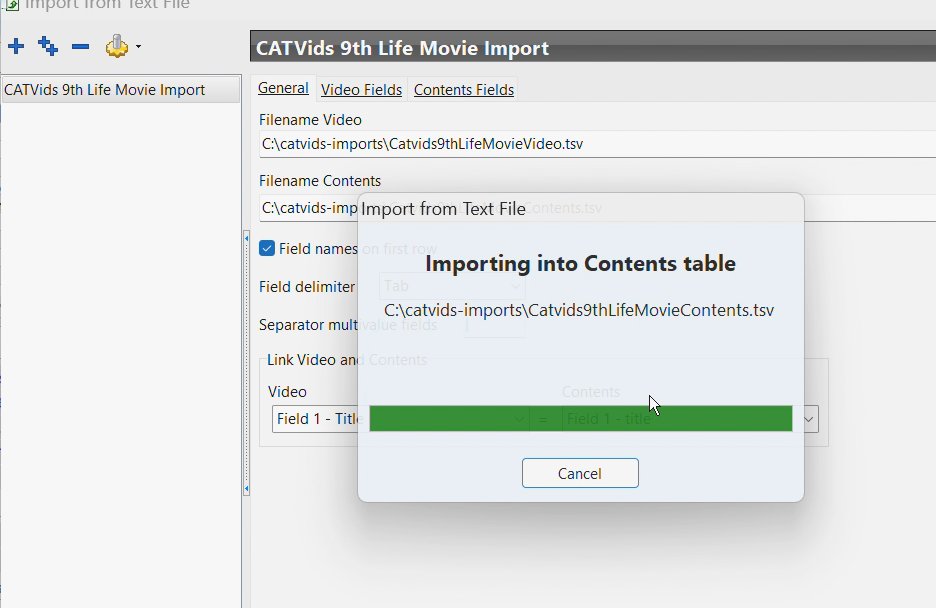
You will see brief importing messages.
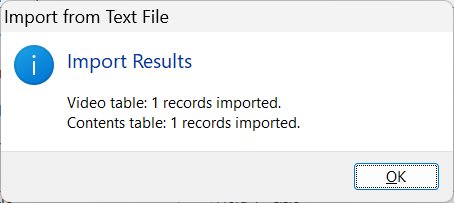
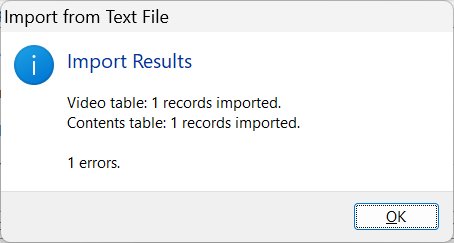
You will then see an Import Results window. Please note that there will be 1 error if you chose not to download the movie poster image. This error can be ignored.
Choosing not to download the optional movie cover image will result in one harmless error being reported.
All done! You can now check your CATVids to see what has been imported. Simply go back to step 3 in these instructions to download and import data for a different movie or series.
Two pieces of data will not be filled - the Format and the Release Year. This is because both of these refer to physical media, eg the year a 4K Criterion Blu-Ray disc was released. CATVids 9th Life does a movie data lookup, filling in as much Contents data as possible. CATVids 9th Life Version 1.0 does not do any movie physical media data lookup. In any case, CATVids gathering of Video Data has always been very minimal compared with the Contents Data. CATVids 9th Life has been designed to bring back to life the sometimes extensive Contents Data that CATVids used to download from IMDB. After importing a movie with CATVids 9th Life if you were to set, in CATVids Video Data, the Format to the kind of disc you have, the Year that disc was released and the Publisher of that disc, you would typically have all the Video Data that CATVids downloads from Amazon, except for the disc cover image, which as at early May 2026, we can still download with Video -> Download Covert Art...